by Lilia | Feb 12, 2023 | Email Marketing, Guides
UPDATE: Subject line AB testing is now live. You can use this article to set up other types of AB tests, such as on send time, best subject line, CTA, or a combination of all.
What Is an A/B Test Campaign?
An A/B test campaign is a campaign with 2 or more versions being tested on one dimension – typically subject line or send time. A multi-variate test is a test with more than 1 dimension, for example if you are testing 2 different subject lines with 2 different versions of your message body you have 4 total versions and a multi-variate test, to determine the best combination of subject line and message body.
Why Use AB Tests?
AB tests can help you optimize your campaign engagement, by determining best time or subject line to use. If you have a large list (over 50k) you can test a subject line on 20k and use the best one on the rest of your list, improving your engagement overall.
You can setup AB test to determine:
- Ideal send time for your brand or list – test early on, then use that knowledge forever!
- Best subject line
- Best converting CTA in your email body
- A combination or all of the above!
Besides producing better results (sales, conversions), higher engagement helps improve your future inboxing.
How to Setup an A/B or A/B/C Test
Step 1: Setup up your A/B or A/B/C segments
Determine how many variations do you want to test – that’s how many segments you need to split your list into. We suggest to define reusable segments using “starts with” condition on one of your custom fields, for example first name.
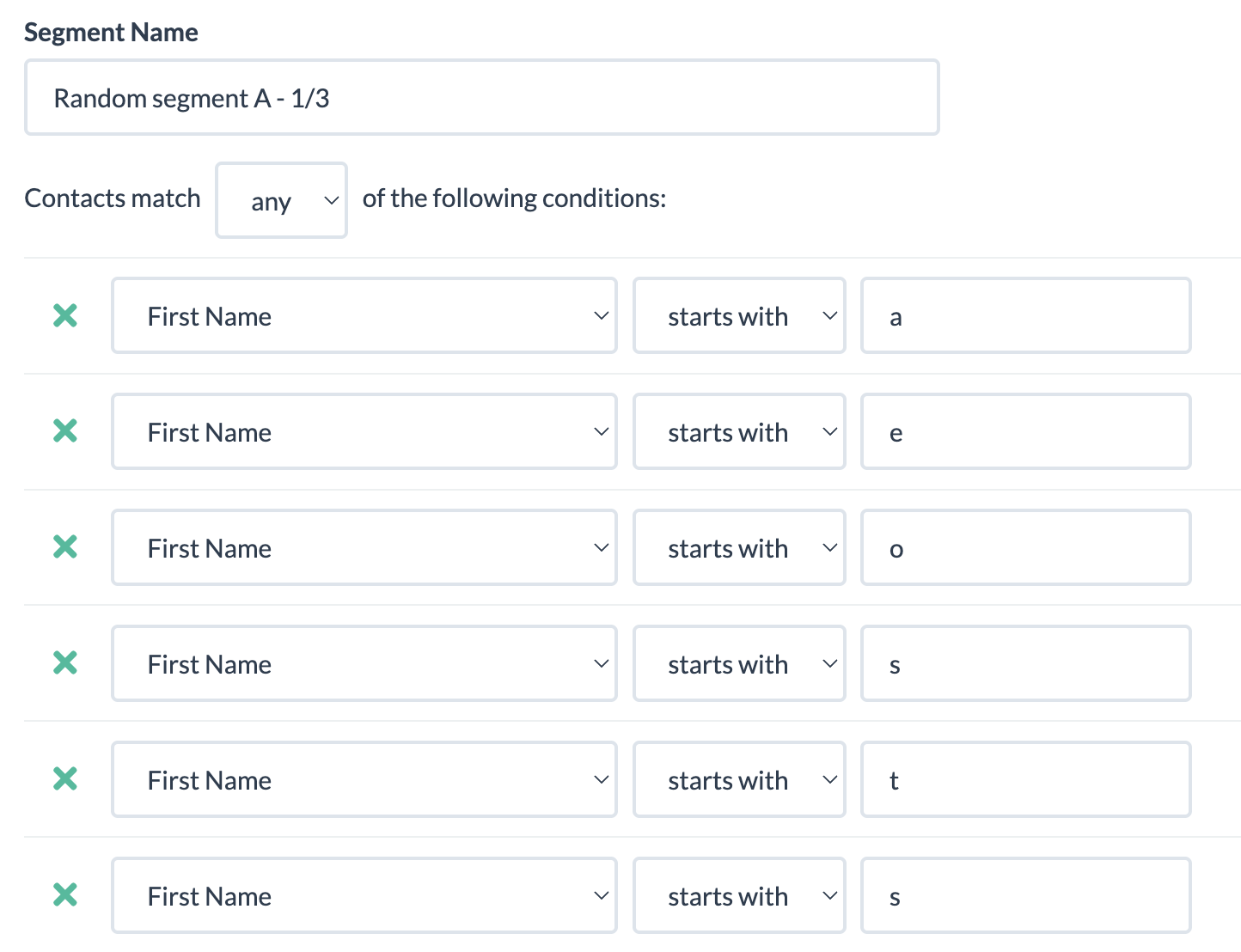
Then, create a segment that’s basically “not A” to ensure you don’t make a mistake with rule overlap. The example below shows a segment C that’s basically doesn’t match ether A or B, and segment B would be setup similar to A but with different rules.
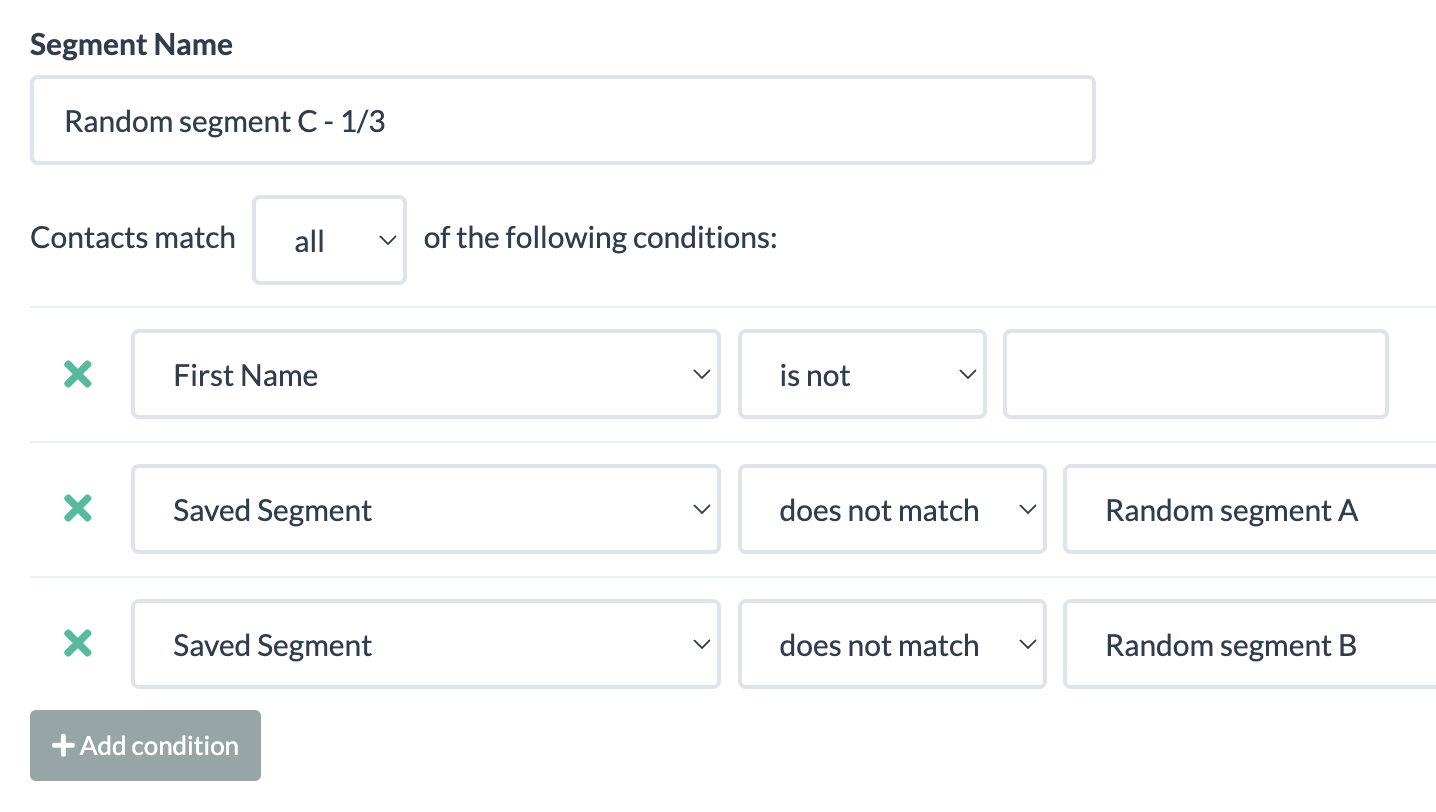
TIP: Make sure each segment has at least 10,000 contacts in it, so your experiment results are statistically significant.
Step 2: Setup your campaign variations.
Create your bulk/promo campaign, then create copies with your variation – subject line, preview, or message body. Assign a different segment to each campaign, see example in the screenshot below.
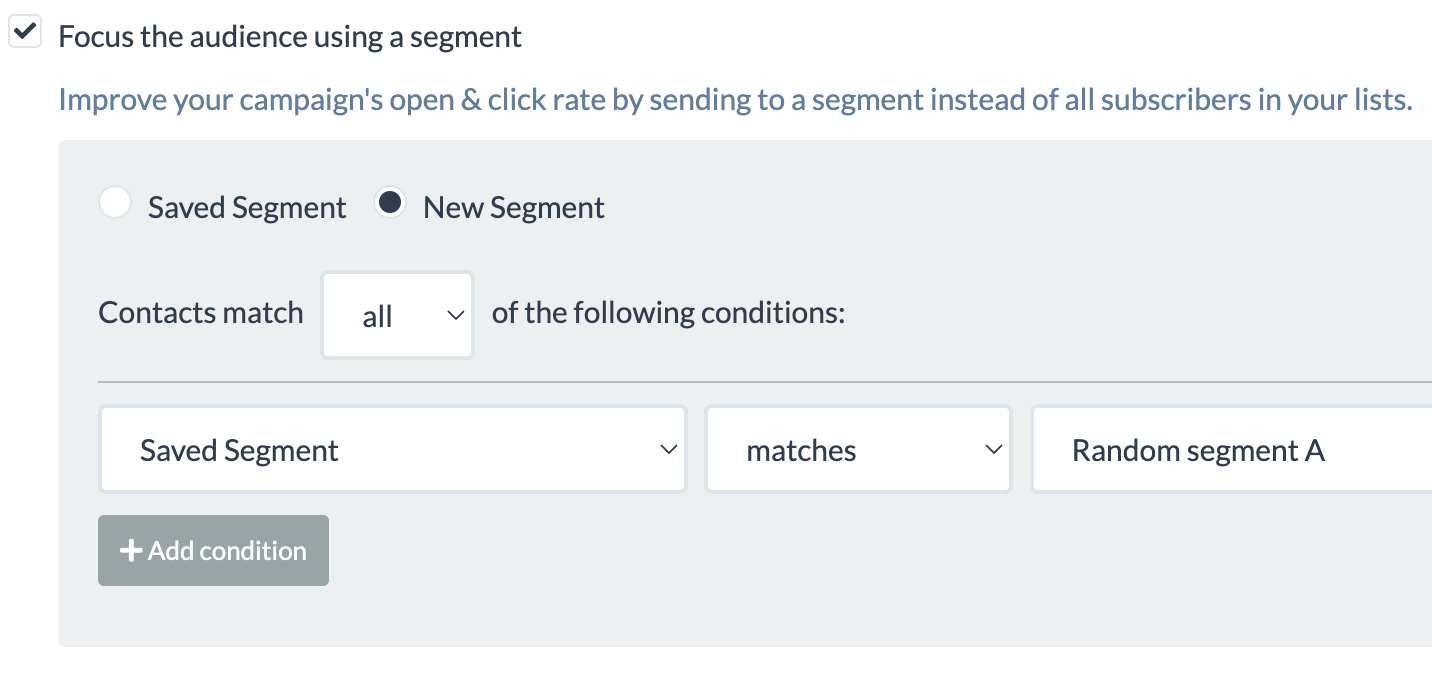
If you are testing on send time, then your campaigns will be identical, but will just be scheduled to send at different times.
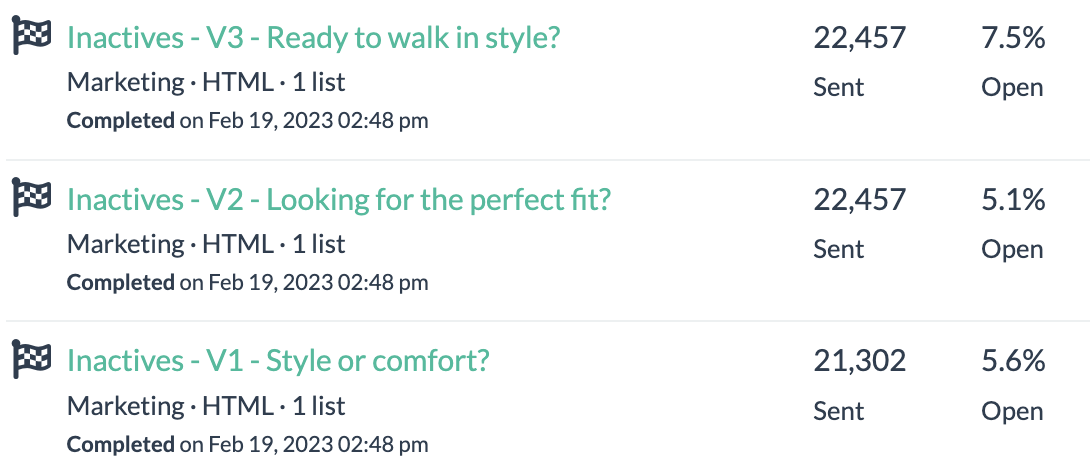
Note: The example above is for a B2C list that’s 60%+ Gmail, so those landed in Promotions tab.
TIP: You could create a test using small parts of a larger list, then use the results for the remainder of your list.
Step 3: Start Testing (almost)
Reach out via chat and request to update your account to allow you to send more than 1 campaign at a time, if you want to test on content and send your campaigns at the same time. By default, accounts have 1 queue and campaigns go out sequentially. If you are on an Agency plan, you already have ability to send concurrent campaigns.
That’s it. If you are a BigMailer customer you can reach out for assistance with this or anything else via chat 7 days a week.
Not a BigMailer customer? Why not try BigMailer for free, with no features locked? We are sure you will love it.
by Lilia | Jun 27, 2020 | Help
What is Segmentation and Why Use It?
Email list segmentation is a technique that email marketers use to send highly targeted emails by dividing their list up into smaller groups, or “segments.” The goal of segmentation is to provide more relevant content to your email recipients.
You want your marketing campaign to be as precise as possible so the right message can hit the right people at exactly the right time. For this, email segmentation is an absolute must.
How to Segment Your Email Lists
In BigMailer, you can segment your campaigns on:
- Your custom fields. For example, last order date or subscription status.
- Pre-defined fields like DateAdded and Email, specifically email domain (e.g. gmail.com or yahoo.com).
- Campaign engagement – sends, opens, clicks on a specific campaign or any campaigns in a given time period.
Here are some examples of segmentation rules you can use in BigMailer with screenshots:
DateAdded – this value is added when a contact is added to BigMailer:

Campaign engagement – sent/not a specific campaign:

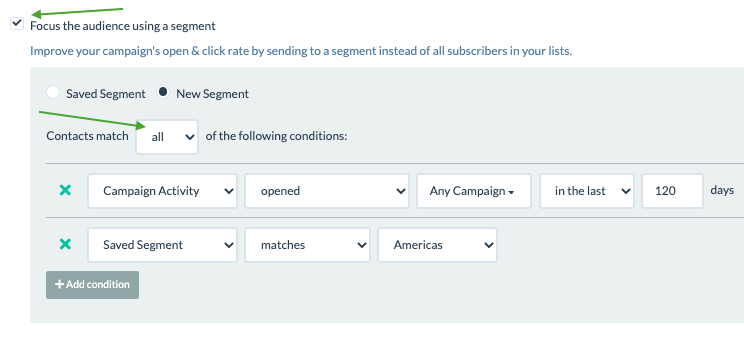
Campaign engagement – opens on a specific campaign or any in a given time period:


Campaign engagement – clicks on a specific campaign or any in a given time period:

You can combine your inline conditions and your pre-defined segments with either ANY or ALL rule.
If you’re reading this, that means you’re serious about creating the most targeted email campaigns possible. And we are here to help.
Before you’re able to segment your audience, you need to get their emails and collect relevant data. Using BigMailer webforms to collect your subscriber data gives you a few advantages. For example, we automatically capture your user’s IP address (but we don’t save or store it) and convert it to non-PII data points (country, state, city, zip code, and latitude and longitude), which allows you to target your audience by location.
Need ideas on how to leverage segmentation? Check out this article – 50 ways to segment your list from OptinMonster.
Want to learn more about email marketing? Head over to our email marketing automation or email deliverability guides.
Happy email marketing!

by Lilia | Aug 28, 2019 | Help
Experienced marketers know that smart volume management is part of the sender reputation management, especially for high volume senders. If your list is smaller than 5000 emails, then this isn’t something you need to worry about and as long as you build your list overtime and increase sending volume gradually. Also, if you or your organization is a sender with an established reputation and a history of high volume sending, the volume isn’t as big of an issue as campaign engagement and future deliverability.
You need to carefully manage your sending volumes in order to build up your sender reputation if you are:
- Just starting out with bulk campaigns for yourself or a client, or
- Haven’t engaged your list of 5k+ subscribers in the recent months
- Switching your sender domain, email address, and/or provider, possibly due to a “burnt” reputation in the past.
Why not blast a single email campaign to your entire list? Because if this volume of sending isn’t typical for your sender identity it will look suspicious to a mailbox provider (aka ISPs) because big changes in sending volume may indicate that a list hasn’t been grown organically (naturally), bur rather rented, purchased, or harvested via other means, and this can have a negative impact on email deliverability and inbox placement. So what should you do? Start by sending low daily volumes and build up volume over time – the idea is to send less than 1k emails per day per provider when you are just starting out, and ideally start with high quality messaging and high engagement subscriber segments.
High engagement on your early bulk campaigns will aid your sender reputation score and improve inbox placement rates on future campaigns.
There are a many different ways you can break down your list:
- Segment your list based on a field like “Date Signed Up”, “Order Date”, or similar date or number based fields that indicate subscriber recency or loyalty, and start sending initial campaigns to your recently engaged or your most loyal customers.
- Based on demographics like age or gender, or a number-based field like “Member ID” with “greater/less than” condition.
- Based on past campaign engagement, e.g. anyone who “opened” any campaign in the last 14-21 days.
- Segment your list based on location. If you customize campaign send time based on subscriber local time you can get better engagement. The best time to send on week days is usually 6-10am local time.
- If bulk of the emails on your B2B list are not major providers, you can actually send a large campaign by simply segmenting out the top providers using an email domain check, e.g. if “domain is” or “domain is not”. See example in the screenshot below.
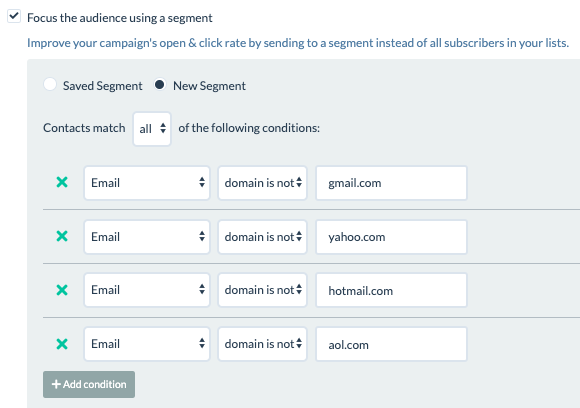
Segmenting based on email domain in BigMailer
Depending on your list size, you may choose to use and combine several of the methods listed above, and that’s perfectly fine. There is no one size fits all approach to building your domain reputation – you know your list best and can figure out the best strategy for yourself.
It may be frustrating to not be able to send to your entire list and put in all the extra effort, but the effort is worth it and will pay off via better long term deliverability, inbox placement, and most importantly your subscriber engagement with your email campaigns as a result.
by Lilia | Mar 12, 2018 | Announcements
Whew… we were a little behind the timeline we committed to on our product roadmap, but support for transactional emails is now live!. You can now add and manage your transactional emails, in addition to marketing (bulk) and automation campaigns (aka drip or email sequences) in BigMailer, included in all plans at no additional cost.
Using SendGrid for your transactional emails now? Here is a SendGrid vs. BigMailer comparison.
How to use BigMailer transactional email campaigns:
- Use BigMailer for standalone transactional emails triggered within your application and store/manage your transactional email templates on BigMailer platform – this allows marketers to tweak CTA and content of those emails without getting developers involved.
- Use your defined transactional emails as triggers in automated/drip sequences.
- Automatically feed your transactional email contacts into appropriate lists for use in your marketing/bulk campaign. This is a benefit of managing your transactional and marketing/bulk emails on the same platform.
EXAMPLE USE. Say you have an email collection form on your blog or site to get users to subscribe to your newsletter that goes into a list named “Newsletter Signup”. Once you setup a transactional email contacts to go into your “Regi” list or possibly “Paid Customers” you can segment your marketing campaigns based on those lists.
How to setup transactional email with BigMailer:
- Click on your username in site header (top right cornet), then select “Account” in the dropdown.
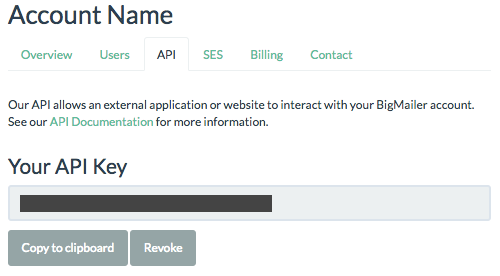
- Select “API” tab in the page navigation, you will see your API key
- Select “Campaigns” in the site header navigation, then go to “Transactional” tab and click “Create Campaign button”

- Define all the fields for a campaign, save.
- Refer to API documentation to add email triggers to your application.
We will be expanding our APIs and documentation in the coming weeks and months, but if there is some feature you are looking for please don’t hesitate to reach out.
by Lilia | Jan 31, 2018 | Announcements
The wait is over! You can now add and manage your marketing automation campaigns (aka drip or email sequences) in BigMailer,
included in all plans at no additional cost.
Examples of Automated Email (Drip) Campaigns
What kind of emails can you add? Below is a list of examples for an e-commerce site or a membership-based online product. If the customer signed up for a newsletter you can simply tell them what to expect, e.g. how often you send updates and a promise to keep content valuable and interesting, or send them a survey on what topics interest them or who they are.
1. Welcome Email (Account/Regi Confirmation).
Condition for trigger: Email is added to a list (1st email in your sequence).
This one is a must for email marketers. This is your opportunity to re-engage the user but also tell them about major features they can explore, highlight next steps for taking advantage of their new account, or point them to articles on product usage tips.
2. Got Questions? Can we help you?
Condition for trigger: 1-7 days after welcome email (step 2 in a sequence).
Use this email to offer helpful content or remind user how to get assistance with any issues they might be having, also to highlight methods for support (chat, email, phone).
3. Ready to subscribe/upgrade? / Special Offer
Condition for trigger: 3-30 days after Step 1 or Step 2 + not in your subscriber list (you should have a list for your paid subscribers).
This is your sale email and a chance to convert your prospects or users on free accounts into paid customers. It’s common to see a discount offer in this type of email (10-20% forever or off first 1-3 months), as an incentive to upgrade during a fixed timeframe (today only or in the next X days), but you can simply remind the user about all the benefits of a paid product and highlight its value to the user. Remember, great products save their users either time or money or both.
Checkout BigMailer product roadmap to see what other features we are working on and help us decide on what we should move up the list.
Happy Automation!