
Email Marketing Campaign Tracking in Google Analytics

Email Marketing Campaign Tracking in Google Analytics

If you use an email marketing platform to manage your email campaigns you already know what your open and click-through rates are. But do you know how many leads and sales your email campaigns generate and what ROI you get on your email marketing efforts? If you don’t yet track your email campaign performance or want to audit your setup, no worries – we put together this guide for email campaign tracking to help you do just that.

First, lets cover some basics – the most common way to track visits from an email to a website, and analyze activity for those visits, is by implementing utm parameters for Google Analytics. If you are curious what the other options are it’s setting up custom landing pages for each acquisition channel or even campaign, that’s what some very large companies do.

How to use utm parameters to track marketing campaigns

First, make sure your website has Google Analytics tracking installed site-wide. When you use Google Analytics (GA) for your website you can take advantage of special utm parameters that are appended to URLs to identify traffic sources (acquisition channels and campaigns) that are tracked on GA platform.

utm_medium – lets you see how your traffic is coming to your site (organic, referral, paid, social, video)
utm_source – tells you where your traffic is coming from, allowing to compare different referral sources
utm_campaign – helps you track how different marketing initiatives are performing
utm_content – lets you tag a specific element within a marketing campaign (ad creative, specific link)

Utm parameters are generally used in 2 ways:

1. Many marketing platforms automatically self-identify to GA by appending utm parameters.

Example: URL with utm parameters auto generated by Buffer

Example: URL with utm parameters automatically generated by Buffer

2. Marketers can define utm parameters themselves by adding values they choose.

Example: URL with utm parameters for tracking a link in an emailExample: URL with utm parameters for tracking a link used in an email

In the examples above, the text in blue is the pre-defined utm parameter names GA is expecting and the text in green is the values being passed in. The examples above are missing a utm_content parameter that helps identify the exact element that was clicked on, but this level of detail is most useful to businesses with large volumes of leads and variety of marketing assets.

So keep this in mind – your data is only as useful as your tagging. If you don’t track it, you can’t improve it. 

How to add utm parameters to links in email marketing platform

Unfortunately, not all email marketing platforms support custom tracking with utm parameters for Google Analytics, and some (like SendGrid) only allow you to set your utm_source and utm_campaign parameter globally for entire account, rather than on a per campaign basis. 

You can look for link tracking settings either at account level, or as an option on each email campaign. In BigMailer, campaign management screen has a section for link tracking where you can define your utm_ parameters in an open text field.
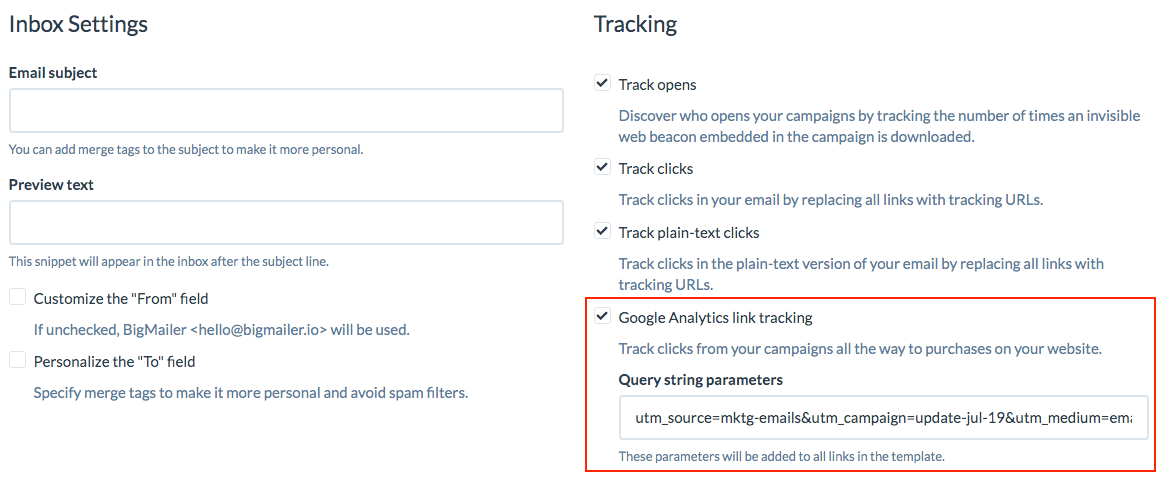
Google Analytics utm parameters tracking

Google Analytics utm parameters tracking in BigMailer

If you have control over the utm parameter values, consider identifying your email source as a type of email instead of the email vendor so you can compare historical performance for your email campaigns over time. For example, you can identify marketing emails as utm_source=mktg-email, automated campaigns as utm_source=auto-email, and transactional as utm_source=transaction-email. This way you will be able tell how your marketing or automated emails perform in aggregate and what type of emails is driving conversions, sales, or upgrades. 

Where to find data in Google Analytics based on utm values

You can map customer activities with your website pages (using URLs tagged with utm parameters) in Google Analytics by going to “Acquisitions” tab, see mapping below.
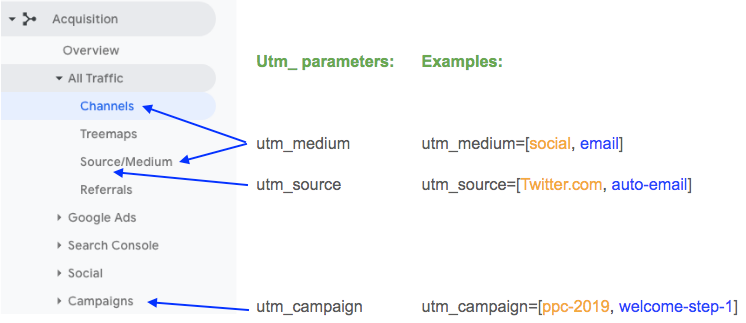
utm_ parameters Google Analytics mapping

Google Analytics Traffic reports by channel, source, medium, and Campaign.


How to optimize email marketing campaigns with Google Analytics

You can analyze your traffic from email and act on the data in 3 main ways:

  1. Engagement with your site – time they spent on the landing page, bounce rate, page views per visit. These metrics will help you evaluate the content quality on your site and a fit with your audience.
  2. Conversion of your site visitors into leads (trials, registrations) and paying customers, if you setup Goals or e-commerce tags for conversion tracking within your Google Analytics account.
  3. Compare your engagement or conversion metrics change over time (month-over-month or year-over-year for seasonal businesses), and especially based on any change in setup (email sequence design), frequency or schedule for bulk campaigns, or creative (email templates).

What happens if utm parameters aren’t present or defined incorrectly?

When Google Analytics doesn’t see any utm parameters on the URL, it will try to identify the referring site, using built-in data passed in as part of the browser request for the page, called http_referer. The referrer info is only passed in between browser requests but not from other applications that open web links in a browser window. So when a desktop application like Outlook, which is used by many large companies, opens an email link in a browser the browser doesn’t know what the referrer is and GA doesn’t know how to attribute the website visit unless the links in the email have utm tracking parameters on them.

If you don’t tag the links yourself, your visits can be attributed to a variety of channels.  Direct channel implies that the visits recorded under it are direct visit, but that’s actually not the case.

Direct channel captures all traffic without referrer data, it’s actually a catch-all bucket with referrer is UNKNOWN.
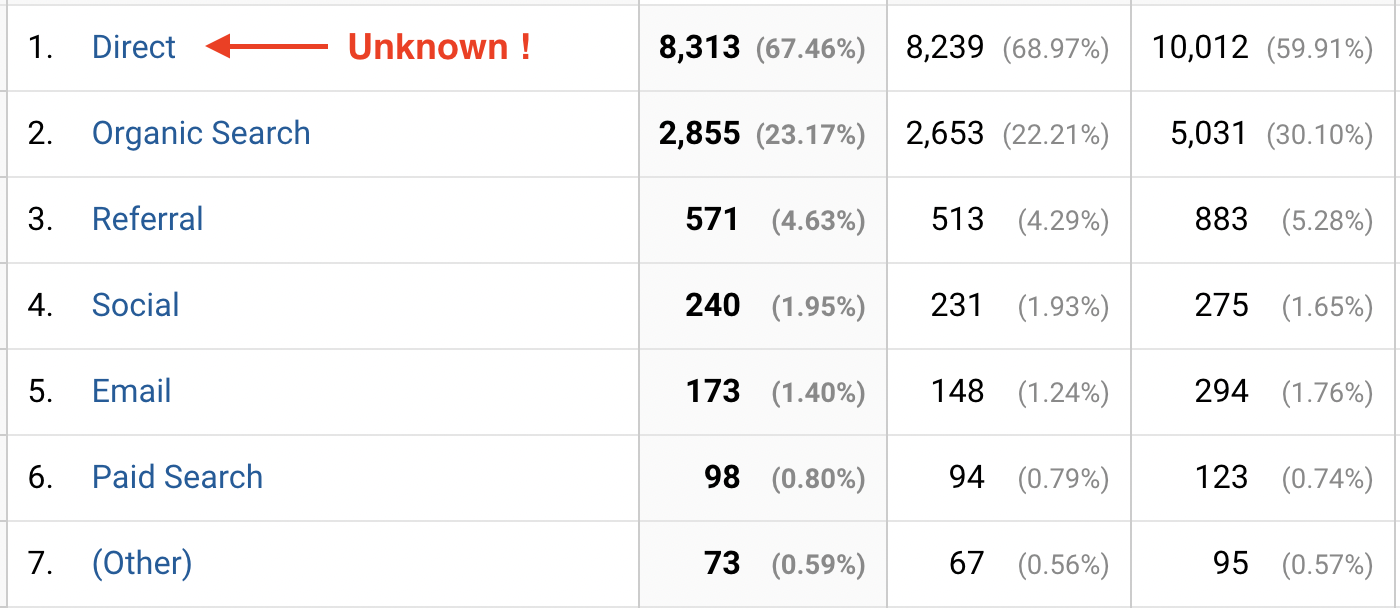
Google Analytics Channels

Email Clients in 2019 (report from Litmus): 18% of all emails are opened with desktop clients. Outlook is #1 desktop email client.

So without utm parameters being explicitly, intentionally, and accurately added added the site visits from emails can appear in various acquisition channels:

  1. Referrals – when platforms identify themselves as website domains names, they may show up under Referral traffic
  2. Other – when utm_medium is incorrectly set to something GA doesn’t recognize or “Email”
  3. Direct – when no utm parameters are present on URL and no referrer info available to browser
  4. Email – when utm_medium=email (case sensitive)

So once again, your data is only as useful as your tagging, so make sure you tag your links correctly because there is no going back once data is collected and classified incorrectly.

Happy email marketing!

A Guide to Conversion Tracking with Google Analytics

A Guide to Conversion Tracking with Google Analytics

If you’re a startup founder, a growth marketer in an early stage startup, a developer working on side projects, an aspiring professional blogger or simply someone who wants to be a data-driven decision maker, this post is for you.

When product your is past its minimum viable product (MVP) phase and in a growth phase, you can afford premium analytics tools. In the early stages, however, you probably don’t have a lot of data, so using one of the many available free tools to help you collect conversion and engagement metrics can be a smart choice. The data you’re able to collect and analyze in the early stages of product development is not only important in illustrating what channels and tactics work best, but it can also be crucial to your startup’s success or failure.

While there are many analytics tools available, none can claim the large-scale adoption and proven value of Google Analytics (GA). For purposes of this post, I’m going to assume you already have Google Analytics tracking set up on your website and dive straight into some conversion tracking instances that don’t require additional steps from a site owner or developer.

Conversion Tracking Using Google Analytics Goals

Effort: Minimal – you define your goals in the Google Analytics UI with no code updates required.

You can set up goals for your main non-sale conversions like email sign-up, free account/trial sign-up and product activation. These can help you understand your conversions from site visitor to member, trial member or email subscriber. For many products, you can also add goals as steps that indicate product usage, allowing for certain functionality that enables users to evaluate your product and its value.

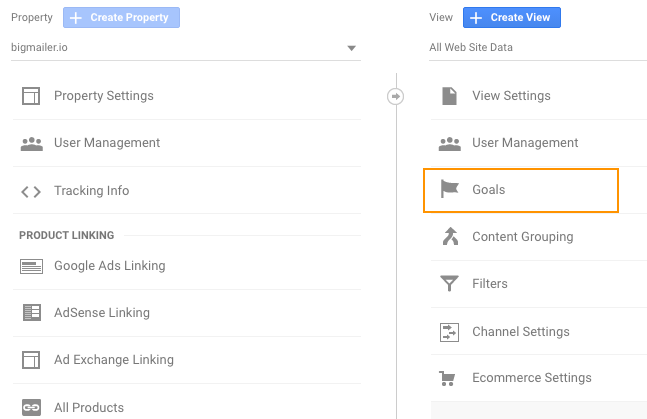
To get started, go to the Admin tab on the bottom left (look for gear icon), find “Goals” link under Views.

GA Admin Goals

Click “Goals” and then “+ NEW GOAL.” From here, there are two simple ways you can define goals:

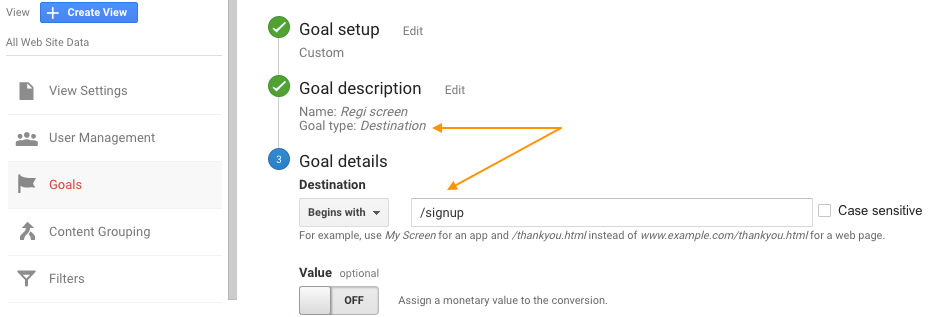
1 Use a unique URL path of the page that indicates a task completion such as /email-signup or /regi/welcome.

GA goal setup by destination

2 Use a unique name=value string that your site might already be using to indicate some other completed action. For example, you might be redirecting a user to the page they were on prior to creating an account and appending ?regi=true or ?email-signup=yes or a similar parameter to indicate to your application that the user just joined the site or mailing list. This can be used to display a custom welcome message or launch a tutorial-style widget to tell the user more about your site or product.

NOTE: Google Analytics allows you to assign a monetary value to a goal, but unless you’re actually using Goals to track sales or other actions you monetize (like automatically opting in your members to partner email lists or products during the registration process), you shouldn’t assign it. An exception would be if you only sell one product at one price point, like an ebook. You can actually use Goals to track your sales in this case, so you don’t need to read the rest of this post if your setup is that simple. 

Email to Web Engagement Tracking Using Goals

Effort: Medium – depends on how and where you currently manage your emails.

If you send emails of any kind to your customers, make sure to tag all of them, marketing and transactional, with utm_ parameters.

If you’re new to utm_ parameter tracking, check out this guide. At a bare minimum, always pass utm_medium=email on all links in your emails to attribute your traffic, engagement and sales to the Google Analytics “Email” channel. Many email providers have click tracking disabled by default (SendGrid, MailGun), so make sure to enable it first and define values, preferably at campaign level.

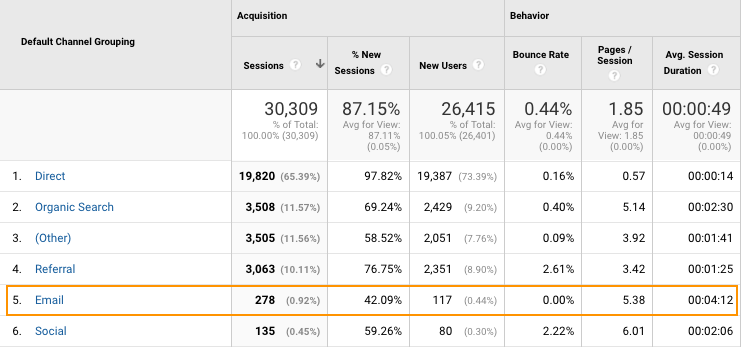
If your email links don’t pass utm_medium=email, your stats will be attributed to catch-all “Direct,” “Referral” or “Other” channels depending on the email provider you use and the email clients your subscribers use. Once you add utm_medium=email, your stats will shift from one or more of the other predefined channels in the Email channel.

GA Email channels

Utm_medium should always be set to “email” for your email links. If you set utm_medium to something you came up with yourself and it isn’t a convention, like email-[provider], then all your data will be attributed to the Other channel.

Conversion Tracking for Pay-Per-Click (PPC) Campaigns

Effort: Medium – requires your developer to drop the code in the right place but without customizing it.

If you run any PPC campaigns, simply drop the conversion tracking code (aka “pixel”) from your network to your subscription confirmation page. PPC platforms such as Google AdWords, Facebook, Pinterest, and many others all offer the option of adding a tracking code to your site. This allows you to track the return on investment (ROI) for your campaigns and ads inside those platforms.

E-commerce Conversion Tracking

Effort: Medium to Large – requires a developer be familiar with the checkout setup to drop the code and add values from the application into the code.

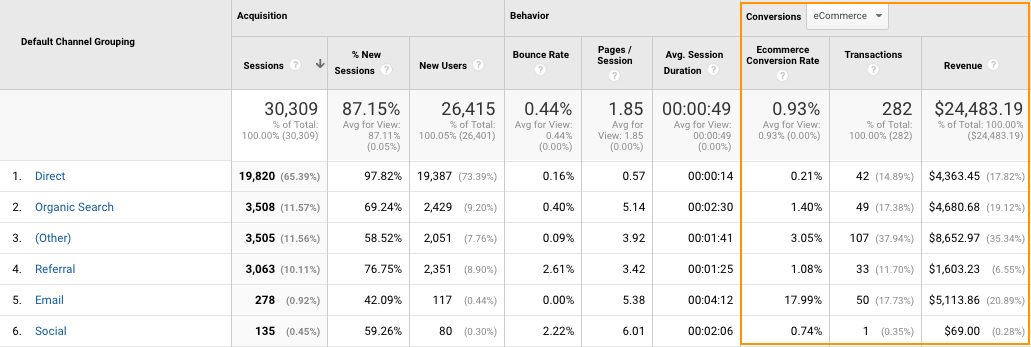
The best thing you can do for your conversion-to-paid tracking is to add e-commerce tracking from Google Analytics and pass the value of the sale or initial (first month/year) subscription from the sale/subscription confirmation page to Google Analytics. This will assign sales/revenue to the appropriate channel automatically, and you’ll even know what landing page the user originated from (i.e., an individual blog post) if you drill down to report by landing page (“Behavior” tab on the left > “Site Content” > Landing Pages).

GA channels with E-commerce data

Google Analytics Report Example: E-commerce Data by Acquisition Channel

IMPORTANT: If you sell in more than one country and display prices in multiple currencies on checkout or receipt/confirmation pages, make sure to convert the value to your desired currency before adding the information to the e-commerce tracking code. Your e-commerce data in Google Analytics will otherwise be an irrecoverable mess until you fix it.

Special Case – You Offer a Free Trial

Effort: Large – requires development work, including database work.

Typically, when someone signs up for a free trial that requires a credit card, they’re moved to a paid plan after the trial period ends. If your product supports this model, then the goal and e-commerce tracking described above will only track your free trials and not the actual revenue you collect unless you’ve included a custom step in which a user manually upgrades and chooses a plan or adds a payment method.

One way to track your sources of revenue beyond a free trial is to record referral data (http_referer and utm_ parameter values) to your database during the conversion to trial step. This will provide a referral source for each trial record. To implement this process, record a referral source (check HTTP referer and/or utm_ parameters on query string) into a cookie, and then record the source from the cookie into your database with the account record during the trial sign-up step. You can later cross-reference that record with subsequent renewals and determine your churn, life time value (LTV) ratio and ROI for the individual acquisition channels or specific PPC campaigns (if you use unique utm_campaign parameter for each PPC campaign).

For more info on implementing custom conversion tracking, check out Building Your Own User Analytics System in SQL from Periscope, which was written for developers and outlines an implementation in great detail (data tables, columns, etc.).

Did you find this article helpful? Was there anything you wish we covered in more detail or provided examples for? Please share your feedback in the comments.

Happy conversion tracking and growth hacking!