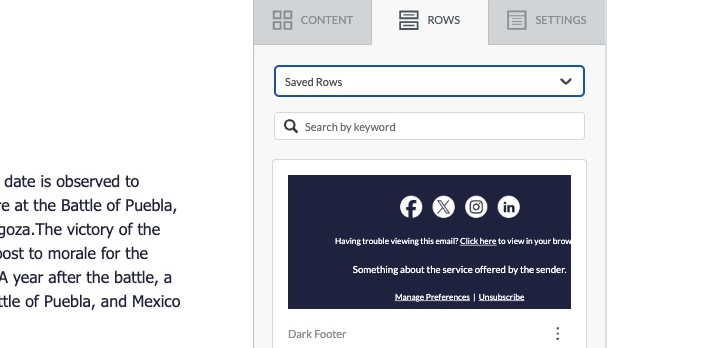
Saved rows feature allows saving reusable rows into a library and adding them into new templates to create template variations faster. This feature is only available in our drag-n-drop template editor and can be used when working with both email and landing page templates.
Saved rows are ideal for storing:
- Headers
- Footers
- Legal disclaimers
- Signatures
- Promotional modules used across campaigns
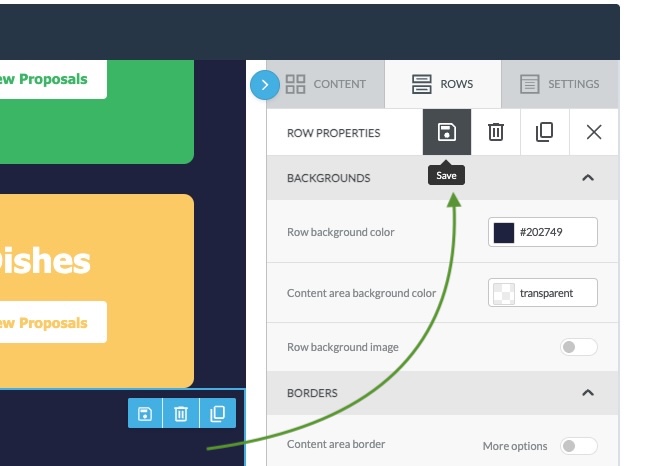
To save any row into your library, just select the row you want to save and click on the Save icon on the right side. Make sure to give is a good name, so it can be searched for later, e.g. “dark footer” or “simple header”
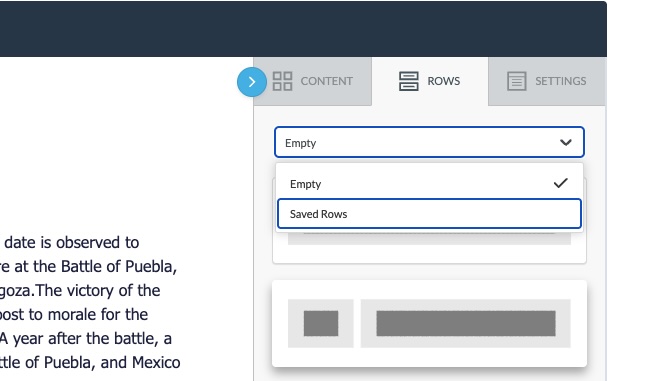
To access saved rows, use a dropdown under Rows tab and select Saved Rows.
Once you select Saved Rows, you will see your saved rows appear in the list.
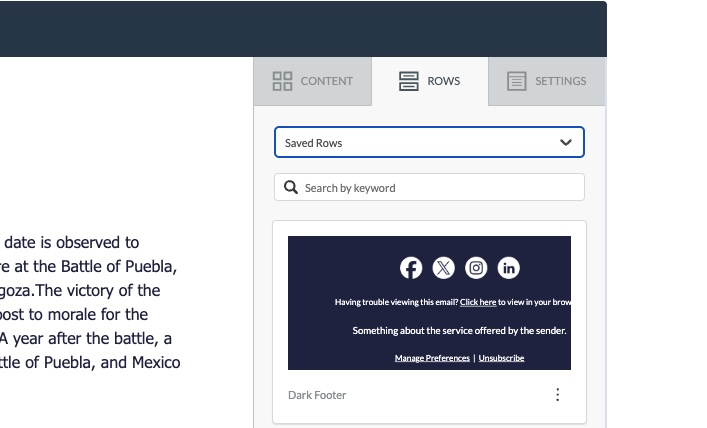
If you have a lot of rows you can use the search field to search for the row you need.
When a saved row is added into your template, a copy is created for each template, so it’s not a live element that can be auto updated in a central manner. If you need to make changes to a saved row you have to save a new version and delete the old one.
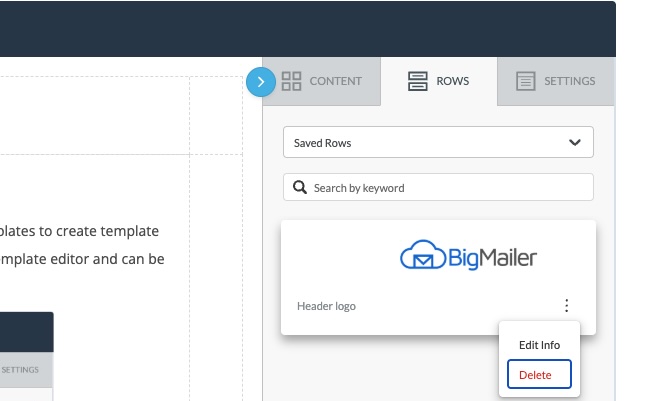
Saved rows are stored at a brand level, so all users with access to a brand can see saved rows saved under that brand.
We plan to add ability to share saved rows across all brands in the account, so if this is something you need please let us know so we can prioritize this feature on our roadmap.
Happy email marketing!