
White Label On-Boarding Guide
In this guide we will guide you through the set up and on-boarding options for BigMailer’s white label. If you still have questions we suggest you reach out via live chat (best for API questions), schedule a demo, or a support call. This guide assumes your team already had a demo and/or you understand the white label options reviewed here.
Basic Account Setup
Your account needs to be approved with relevant features turned on to proceed with any testing and set up. An upgrade to a paid plan may be required. If you are a developer tasked with evaluation, please reach out via chat to request an approval and a paid plan trial to facilitate your testing.
About User Permissions:
- Account Administrator – can do anything and more than 1 per account is allowed.
- Account Manager – ideal for tech leads who need access to all brands, but not Billing page or user management.
- Brand Manager – a typical role for inviting customers to your team account.
Adding Brands aka Sub-accounts
There are 4 ways to add brands/sub-accounts to your account:
- Manually add brands one at a time. Ideal for agencies or for adding test brands.
- Programmatically add a sub-account from your platform via API call, typically when an email service is ordered or purchased within your platform.
- Add sub-accounts in bulk, using a data source and a script that will call BigMailer API 1 customer at a time.
- Provide a spreadsheet with your user data to BigMailer and request assistance with loading your customers as sub-accounts in BigMailer.
If you fully embed email services into your platform you don’t need to create user accounts. However, if you plan for your customers to access your white label email platform as standalone you will need to create users and send them invites to join your team account. The options for adding users are the same as for adding brands, see the list above.
About Brand Properties
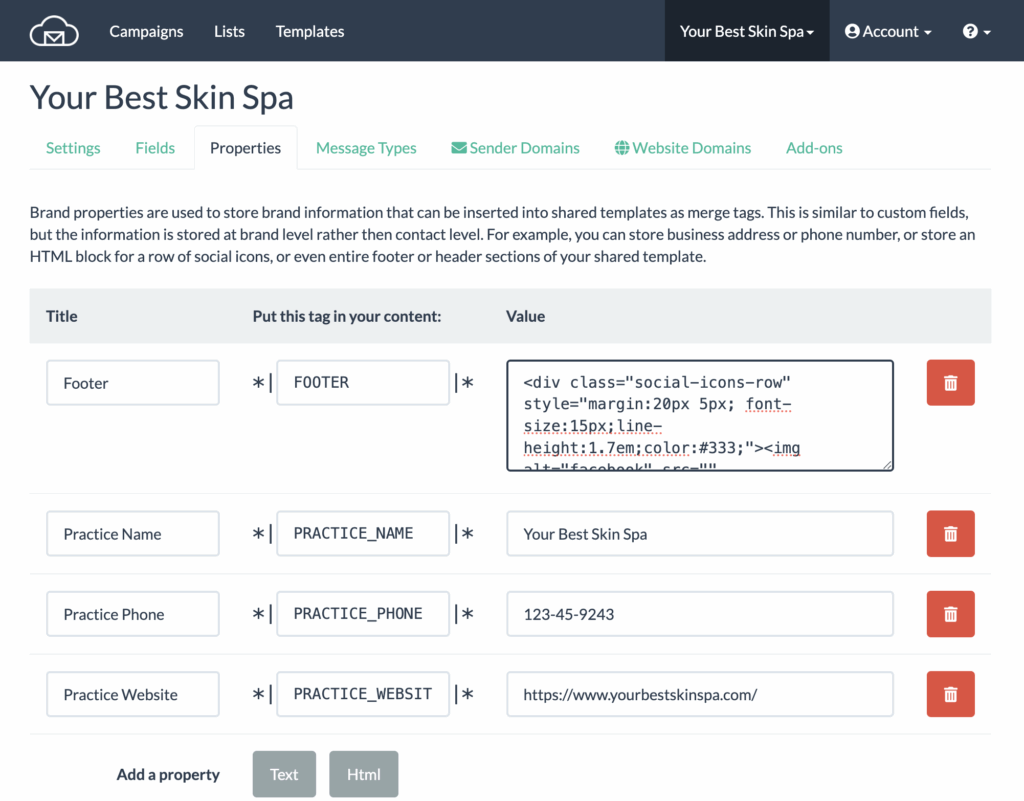
Brand properties are brand level data that can be used to customize shared templates with business/location specific information, for example address or phone number. Brand properties aren’t enabled by default so you may not see them on a brand new account that hasn’t been approved and configured by BigMailer support.
Managing Sender Identities
In BigMailer, all sender domains have to be verified with DNS records. We don’t offer an option to just verify an email address or to send from a domain that we control.
There are 3 options to consider for managing your sender identities in BigMailer:
- Share a sender domain with all brands in the account. This option is ideal for franchises or multi-location businesses. To share a sender domain, add it under your corporate brand first, then check the box for sharing under the sender Settings tab.
- Add and verify a new sender under each sub-account. This is a typical agency setup, but can also be used by platforms embedding email marketing, especially in cases where your business also controls customer websites and can facilitate sender domain verification by adding DNS records.
- Both options #1 and #2. Use sender domains per sub-account, and also have a shared sender domain for some smaller customers and/or as a starting point in on-boarding to get your customers to use email marketing services faster.
IMPORTANT: Do not use your main corporate email domain as a shared sender domain (or for testing), to protect and isolate your sender domain reputation from your customers. Register a new .com domain for this purpose and ideally warm it up with a seed list from a warmup service like InboxAlly. A warmup service will give you a seed list you can send emails to, with emails actively interacting with your emails, helping your future email inbox better.
List Management
You can create lists and add subscribers into your sub-accounts via APIs.
BigMailer offers built-in email verification that can be used by all sub-accounts as long as there is a balance of email verification credits. Email validation credits can be purchased under “Pre-paid” tab of the Billing section.
- Email verification is enabled by default on bulk csv list imports, as long as credit balance is sufficient.
- On webforms, a checkbox has to be clicked to enable email verification
- APIs for adding subscribers need to pass an additional flag validate=true to enable email validation.
Should you use email validation?
Unless you have control over the customer list quality you should use email validation to enable your customer success and protect sender domain reputation. Bad list quality (invalid emails, spam traps, etc) can cause serious issues with future emails inboxing. Plus, invalid emails imported without validation will count towards your account level billable totals.
Managing Email Campaigns
You can create and send 2 types of email campaigns via APIs:
- Bulk campaign is a one-time broadcast sent to a list. It can be a newsletter, announcement, or a promotional email with a special offer.
- Transactional campaign is created once and used to send 1 email to 1 recipient at a time, typically with some transactional detail in the email body. There are 2 options with managing email body of a transactional email:
- You can pass the entire email body as an HTML block. This can work well for very simple transactional emails.
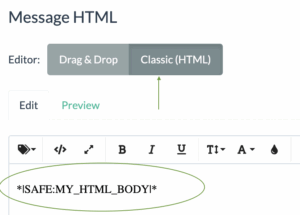
- You can manage a branded template in BigMailer’s classic or drag-n-drop editor and only pass a small HTML snippet to insert transactional info into a template or pass parameters to insert into pre-defined spots in the template. This option would allow marketers to control and adjust appearance of the email without asking a developer to make template changes.
- You can pass the entire email body as an HTML block. This can work well for very simple transactional emails.
Data Management
You may need to make updates for your customers, based on changes in your system or additional data available.
If you have external data sources you can setup an integration to push data updates into BigMailer platform automatically.
You can also set up a webhook to send subscriber engagement data from BigMailer to your platform for processing – bounces, complains, unsubscribes, opens, and clicks. You would need to aggregate the data for display on your end with the logic you chose.
Get More Help
Use the blue chat icon on the bottom right of the page to ask questions. Our support hours are optimized for North America, but we will get your answers fast if you are logged in or leave an email address where the response can be sent.
Helpful Links
BigMailer White Label Overview
Email Marketing 101